Workplace Ergonomics: How to Set Up a Computer Workstation
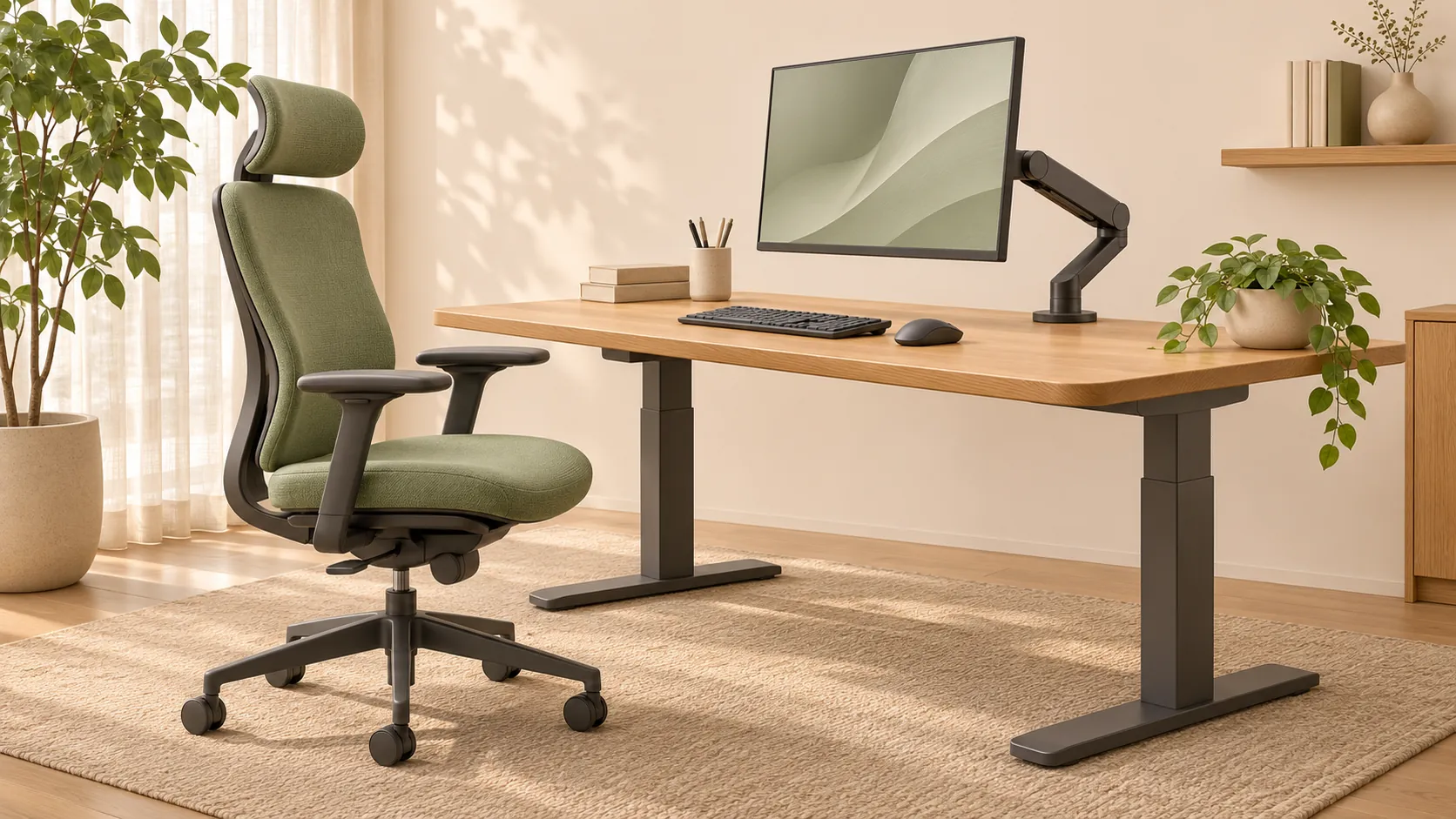
Workplace ergonomics brings furniture, equipment and work activities into a setup that fits the person. At a computer workstation, this means stable support, comfortable arm positioning, a readable screen, access to frequently used items and room to change position. Start by checking the whole arrangement: the person, the task, the chair, the desk and the equipment, rather than buying a chair labelled ergonomic.
The practical aim is straightforward: everyday work should not require constant reaching, leaning towards the screen or twisting. This guide explains how to check an existing workstation and how to test a proposed setup before buying an office. It is a guide to arranging a workstation, not medical advice or a statement of compliance with mandatory requirements.
What computer workstation ergonomics covers
Comfort depends on how the components work together, not on a single item. A good chair cannot correct a monitor positioned to one side. A large desk can still be awkward if its supports obstruct the user's legs or the keyboard is too far away. The ability to adjust the arrangement to the person and the work is what matters.
Assessing one workstation is different from planning an entire office. Staff numbers, circulation and shared facilities belong to office space calculations. Here, the focus is on how a person sits, views the screen, uses devices and changes position within their workstation.
Start with tasks, not a new chair
Make a short list of everyday activities, such as typing, working with spreadsheets, video calls, reading printed documents and phone calls. Note the main device, the number of screens and the items used regularly. A laptop-based workstation and a setup with several screens cannot be assessed from the same reference photograph.
Separate frequent tasks from occasional ones. Documents used throughout the day need an accessible position near the screen. A rarely used folder should not push the keyboard away from the user. Prioritise comfortable repeated actions rather than trying to display every piece of equipment on the desk.
Establish who will use the workstation. A dedicated desk can retain personal settings. A shared desk needs understandable adjustments that different users can change easily. Any individual requirements or professional recommendations should be addressed separately, rather than replaced with a general checklist.
Adjust the chair and foot support
Sit so that the backrest can support your back and your feet have stable support. Adjust the seat height, seat depth and backrest using the available controls. The front of the seat should not create noticeable pressure behind the knees. A seat that is too deep may make the user slide forwards when trying to reach the backrest.
Test the chair at the actual desk. Armrests should neither raise the shoulders nor prevent the chair moving close enough to the keyboard. Having armrests does not mean their position is suitable. Find an arrangement that lets the shoulders relax without having to hold the arms out towards distant devices.
A fixed-height desk may require several rounds of adjustment. If the seat must be raised to position the arms comfortably, check foot support and consider a suitable footrest where needed. If the adjustment range is insufficient, the furniture may not fit the user. A permanently awkward posture is not a useful way to compensate.
Coordinate the desk, keyboard and mouse
Place frequently used devices within comfortable reach, without having to extend the shoulder noticeably forwards. The keyboard and mouse should be accessible from the normal working position, without repeated twisting or reaching. While typing, check whether the wrists are constantly bent in relation to the forearms.
Inspect the desk edge and the space beneath it. A hard edge should not become a constant pressure point against the arms. Pedestals, computer units, boxes and cables should not force the user to tuck their legs in or sit sideways. Allow space to change leg position, rather than merely fitting the legs into the gap left over.
Choose a mouse for the task and the individual user. An unusual shape, a vertical design or an ergonomic label does not establish that a device suits everyone. Before buying in quantity, try the equipment during actual work and check button access and control during ordinary actions.
Position the monitor for the work
Place the main screen in front of the user so that regular work does not require a turned head or torso. Set its height, tilt and distance in conjunction with the chair position and text size. The display should be readable without habitually leaning towards it. Check interface scaling and legibility before trying to solve everything by moving the screen closer.
With several screens, identify which one is used most. If one clearly dominates, orient the main working position towards it. If work is spread across screens, test the full sequence of switching between them. A symmetrical arrangement is not proof that reading and entering information will be comfortable.
View the display from the adjusted working position under the available lighting conditions. Reflections from windows and lights can make a user change posture. Assess screen orientation, light control and equipment positioning together. Lighting is covered in more detail in the guide to office lighting.
Set up a laptop for sustained work
A laptop's screen and keyboard are physically connected. Raising the screen also moves the built-in keyboard. For regular, sustained use, it is worth trying a separate keyboard and mouse with a laptop stand or an external monitor. This allows the display and input devices to be positioned independently.
Check connections as well as device positions. Cables should not pull equipment into an awkward position or obstruct the user's legs. Make sure the laptop is stable, the display remains readable and the stand does not block the ventilation openings specified by the manufacturer. Test the final arrangement with the equipment that will actually be used.
Allow for changes of position and different users
An adjusted workstation should not require someone to hold a single ideal posture without moving. It should allow changes of position and activity during work. Buying one piece of furniture is not a substitute for varying tasks, moving and changing body position.
A height-adjustable desk can offer another working position, but standing still all day is not the objective. When changing position, check the arms, screen and device access again. Working and rest arrangements depend on the conditions and individual needs, not a universal timetable taken from an article.
For shared desks, provide clear instructions for the adjustments and keep controls accessible. Users should understand how to change the seat height, backrest and screen position. The previous user's settings should not be treated as the only correct arrangement.
Test the setup with everyday actions
Briefly sitting in front of a switched-off screen reveals little. Open the usual software and carry out a real sequence of work. Assess the movements that have to be repeated, not simply how a posture looks in a photograph.
- Type and use the mouse without changing the settings just for the demonstration.
- Open a typical spreadsheet or document and check readability from the working position.
- Switch between the screen, notes and a call if these are part of the job.
- Reach for frequently used items and check that the chair can move close enough to the desk.
- Change body position, repeat the actions and record any remaining difficulties.
Make changes one at a time and repeat the same task. Replacing the chair and mouse while also moving the screen makes it difficult to identify which change helped. Persistent discomfort calls for individual assessment; an article cannot establish its cause.
If the setup feels awkward: what to check first
The table suggests a next step for checking the setup. It does not diagnose a problem or attribute a sensation to a single cause. Several components may affect the same movement.
| What happens | What to check | How to test the change |
|---|---|---|
| Shoulders rise while typing | The relationship between chair, desk and armrest height | Type again with relaxed shoulders and supported feet |
| The user has to reach for the mouse | Mouse distance, keyboard width and unnecessary items | Carry out usual actions without repeatedly extending the shoulder |
| The user leans towards the screen | Text size, screen position and reflections | Read a typical document from a supported position |
| Leg movement is restricted | Pedestals, desk supports, cables and items beneath the desk | Move the chair towards the desk and change leg position |
| Reading papers requires repeated twisting | Document position in relation to the main task | Repeat data entry from the document without unnecessary turns |
Test a proposed workstation before buying an office
An empty room or an attractive interior does not show how a particular workstation will function. Before selecting the full furniture package, it is useful to build a full-size trial setup with the proposed chair, desk and devices. If this is not yet possible at the property, record which conclusions are based only on a drawing and still need testing.
Ask the intended users to perform representative tasks. For a shared workstation, check whether the adjustments accommodate different people. Consider the screen's relationship to windows, access to connections and room for the actual equipment. The claim that standard furniture suits everyone is not a substitute for a trial.
Record the findings as requirements: the adjustments needed, the items that must fit on the desk, connection access and lighting conditions to be checked. Feed these requirements into the office design brief. This helps retain them when furniture is selected and the interior is developed.
A trial workstation helps assess whether an arrangement supports the intended work, but it does not replace technical due diligence or checks against applicable requirements. When buying an office, distinguish verified property features from design proposals and the buyer's future fit-out. The feasibility of the desired setup must be established rather than inferred from an image.
Frequently Asked Questions
What does workplace ergonomics mean in simple terms?
It means fitting the workstation to the person and their tasks. Furniture, the screen and input devices are adjusted together so that everyday actions do not require constant awkward leaning, twisting or reaching.
Where should workstation adjustment begin?
Identify the main tasks and equipment. Then adjust the chair, foot support, desk and input devices so the arms are comfortably supported. Finally, check the screen and perform normal work activities.
Is there one desk height that suits everyone?
A single measurement is not enough to choose a workstation. The user, task, chair and device positions all matter. If the available adjustments cannot bring these elements into a comfortable arrangement, change the setup rather than making the user compensate with an awkward posture.
How should a monitor be positioned?
Place the main screen in front of the user. Adjust height, distance, tilt and text size so it can be read from a comfortable working position without constantly craning forwards. Check reflections and how often additional screens are used.
Is a laptop on its own suitable for all-day work?
The built-in screen and keyboard cannot be positioned independently. For regular, sustained work, it is worth trying separate input devices with a stand or an external monitor to coordinate arm and screen positions.
Will a standing desk solve the problem?
It adds another working position but does not, by itself, adjust the screen, devices or work routine. The aim is not to stand motionless all day, but to have opportunities to change position and activity.
Will one chair suit every employee?
A model name cannot establish this. Test the adjustment range with the intended users, including back support, foot support and compatibility with the desk. At a shared workstation, controls need to be understandable and accessible.
What should be tested before buying an office?
Where possible, build a trial workstation with the proposed equipment. Check adjustment for the users, screen readability, reflections, device access and connections. Separately record property constraints and questions that still require investigation.
Use the findings to guide the setup
Keep a record of how the components need to work together, not just a furniture list. Identify the user, task, equipment tested, chosen settings and unresolved questions. Revisit the checks after equipment or tasks change, because the previous arrangement may no longer be suitable.
If you are buying premises for your company, consider future workstation use alongside the property's capabilities. The F-375 website presents an office for sale in Federation Tower. Request the property materials and arrange a viewing to assess it against your needs, keeping its actual condition distinct from the proposed future fit-out.